Calculator ti-83 plus – Introducing the TI-83 Plus calculator, your indispensable companion in the realm of mathematics and beyond. With its robust capabilities and user-friendly interface, this remarkable tool empowers you to conquer complex equations, visualize functions, and delve into the intricacies of statistics.
Embark on a journey of mathematical discovery and unleash your problem-solving potential with the TI-83 Plus.
Prepare to dive into the depths of its functionality, programming, customization options, and troubleshooting tips. Unlock the secrets of the TI-83 Plus and elevate your mathematical prowess to new heights.
Calculator Functionality
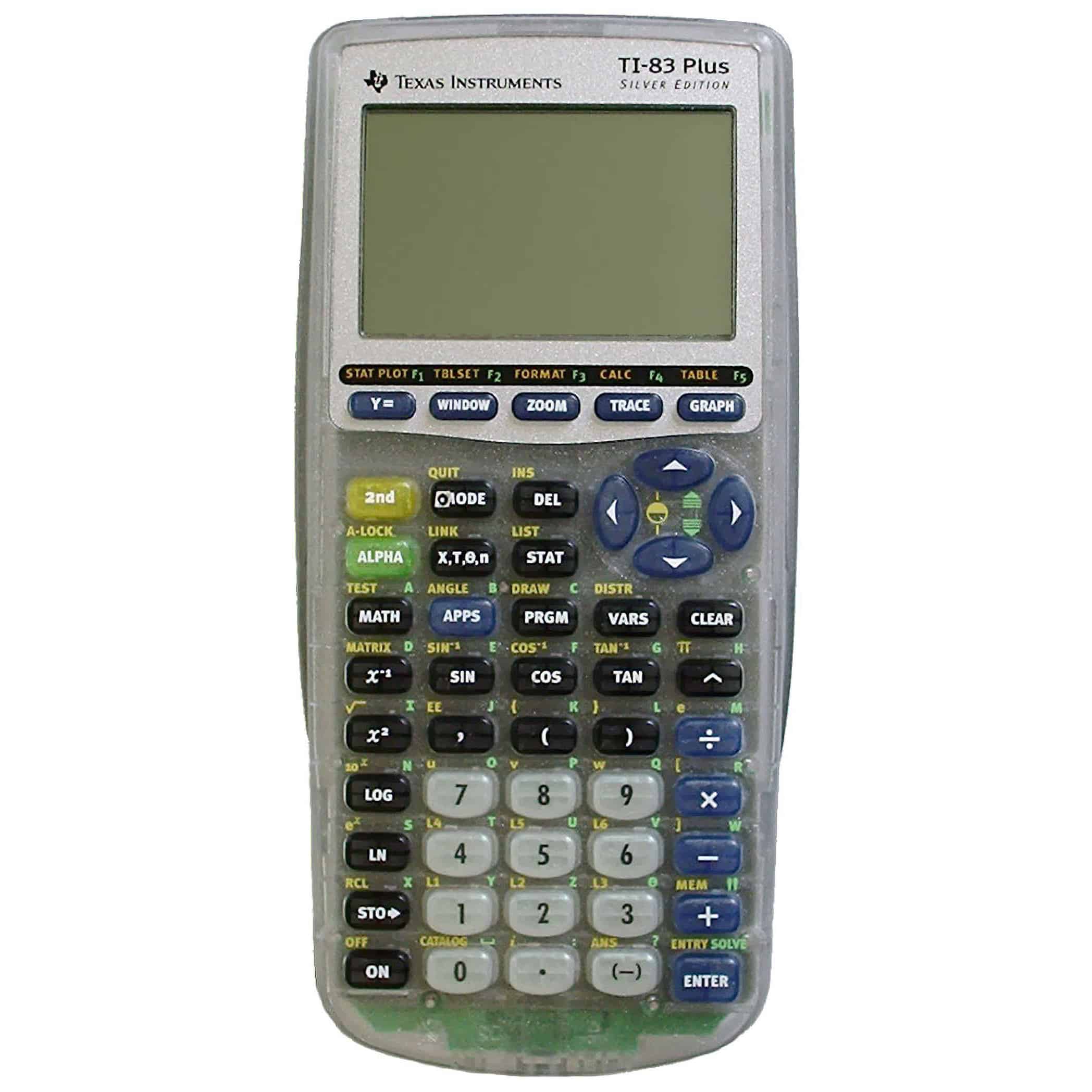
The TI-83 Plus calculator is a powerful tool for students and professionals alike. It offers a wide range of mathematical functions, graphing capabilities, and statistical features, making it an ideal choice for solving complex equations, graphing functions, and performing statistical analysis.
Mathematical Functions
The TI-83 Plus calculator offers a comprehensive set of mathematical functions, including:
- Arithmetic operations (addition, subtraction, multiplication, division)
- Algebraic functions (exponents, logarithms, roots)
- Trigonometric functions (sine, cosine, tangent)
- Hyperbolic functions (sinh, cosh, tanh)
- Statistical functions (mean, median, standard deviation)
Graphing Capabilities
The TI-83 Plus calculator can graph a wide variety of functions, including:
- Linear functions
- Quadratic functions
- Polynomial functions
- Exponential functions
- Logarithmic functions
The calculator can also plot points, draw lines, and create scatter plots.
Statistical Features
The TI-83 Plus calculator offers a variety of statistical features, including:
- Descriptive statistics (mean, median, standard deviation)
- Hypothesis testing
- Regression analysis
- Probability distributions
These features make the TI-83 Plus calculator an ideal tool for students and professionals in a variety of fields.
Programming on TI-83 Plus
The TI-83 Plus calculator offers a powerful programming environment that allows users to create and execute custom programs to enhance their mathematical and scientific capabilities. Programming on the TI-83 Plus is straightforward and accessible to users of all levels, making it an ideal tool for learning and exploring the world of programming.
Creating and Running Simple Programs
To create a new program on the TI-83 Plus, press the “PRGM” key and select “New.” Enter a name for the program and press “Enter.” The calculator will create a new program file where you can enter your code.
To write a simple program, follow these steps:
- Type your program code into the program file.
- Press the “Enter” key to save your code.
- To run the program, press the “PRGM” key, select your program, and press “Enter.”
Programming Languages
The TI-83 Plus supports several programming languages, including TI-BASIC, Assembly, and Python. TI-BASIC is the most commonly used language on the TI-83 Plus and is suitable for most programming tasks.
- TI-BASIC:A BASIC-like language designed specifically for the TI-83 Plus. It is easy to learn and use and provides a wide range of commands and functions for mathematical, graphical, and I/O operations.
- Assembly:A low-level language that provides direct access to the calculator’s hardware. It is more complex than TI-BASIC but offers greater control and performance.
- Python:A popular high-level language that is widely used in various fields. It is available as a third-party app on the TI-83 Plus and provides a powerful and versatile programming environment.
Tips and Tricks
- Use variables:Variables allow you to store and manipulate data in your programs. This helps to make your code more organized and easier to read.
- Use loops and conditional statements:Loops and conditional statements allow you to control the flow of your program. This enables you to perform repetitive tasks and make decisions based on user input or other factors.
- Test and debug your code:It is important to test and debug your code to ensure that it works correctly. Use the “TEST” command to test your program and the “DEBUG” command to identify and fix errors.
- Optimize your code:Optimizing your code can improve its performance and reduce memory usage. Use efficient algorithms, avoid unnecessary calculations, and use the “DIM” command to allocate memory efficiently.
Customizing the TI-83 Plus

The TI-83 Plus calculator offers a wide range of customization options to tailor it to your specific needs. You can change the appearance of the calculator, add new functions, and even install third-party applications.
Appearance Customization
- Change the color scheme and background image of the calculator.
- Create and use custom menus to organize your favorite functions and programs.
- Add custom icons to represent specific functions or variables.
Adding New Functions
- Install additional math functions, such as calculus, statistics, and finance.
- Create your own custom functions using the calculator’s programming language.
- Download pre-written programs from online repositories to enhance the calculator’s functionality.
Third-Party Applications
- Install third-party applications, such as games, productivity tools, and educational software.
- Access these applications directly from the calculator’s menu.
- Expand the calculator’s capabilities beyond its default functionality.
Benefits of Customization
- Enhanced productivity and efficiency.
- Personalized user experience.
- Access to advanced functions and applications.
Drawbacks of Customization
- Potential for conflicts with existing software.
- Increased memory usage.
- Security risks if downloading applications from untrusted sources.
Best Practices
- Customize the calculator gradually to avoid overwhelming yourself.
- Back up your calculator’s memory before making any major changes.
- Only install applications from reputable sources.
- Regularly update the calculator’s operating system and applications.
Troubleshooting and Maintenance

The TI-83 Plus calculator is generally reliable, but users may encounter occasional issues. Understanding common problems and proper maintenance techniques can help extend the calculator’s lifespan and ensure optimal performance.
Troubleshooting, Calculator ti-83 plus
Problem: Calculator display is blank or distorted.Solution:
- Check if the batteries are properly installed and have sufficient power.
- Reset the calculator by pressing the [2nd] and [ON] keys simultaneously.
- If the problem persists, contact the manufacturer for repair.
Problem: Calculator keys are not responding or are sticky.Solution:
- Clean the keys gently with a cotton swab dipped in isopropyl alcohol.
- If the keys are still unresponsive, contact the manufacturer for repair.
Problem: Calculator is not performing calculations correctly.Solution:
- Check if the calculator is in the correct mode.
- Clear the calculator’s memory by pressing the [2nd] and [MEM] keys simultaneously, then selecting “Clear All.”
- If the problem persists, contact the manufacturer for repair.
Maintenance
-
-*Store the calculator in a cool, dry place
Avoid exposing it to extreme temperatures or humidity.
-*Keep the calculator clean
Regularly wipe it down with a soft, dry cloth to remove dust and debris.
-*Replace the batteries regularly
Use alkaline batteries and replace them when the battery indicator appears on the display.
-*Handle the calculator with care
Avoid dropping or subjecting it to excessive force.
-*Update the calculator’s firmware
Check the manufacturer’s website for firmware updates and follow the instructions to install them.
Closing Summary: Calculator Ti-83 Plus
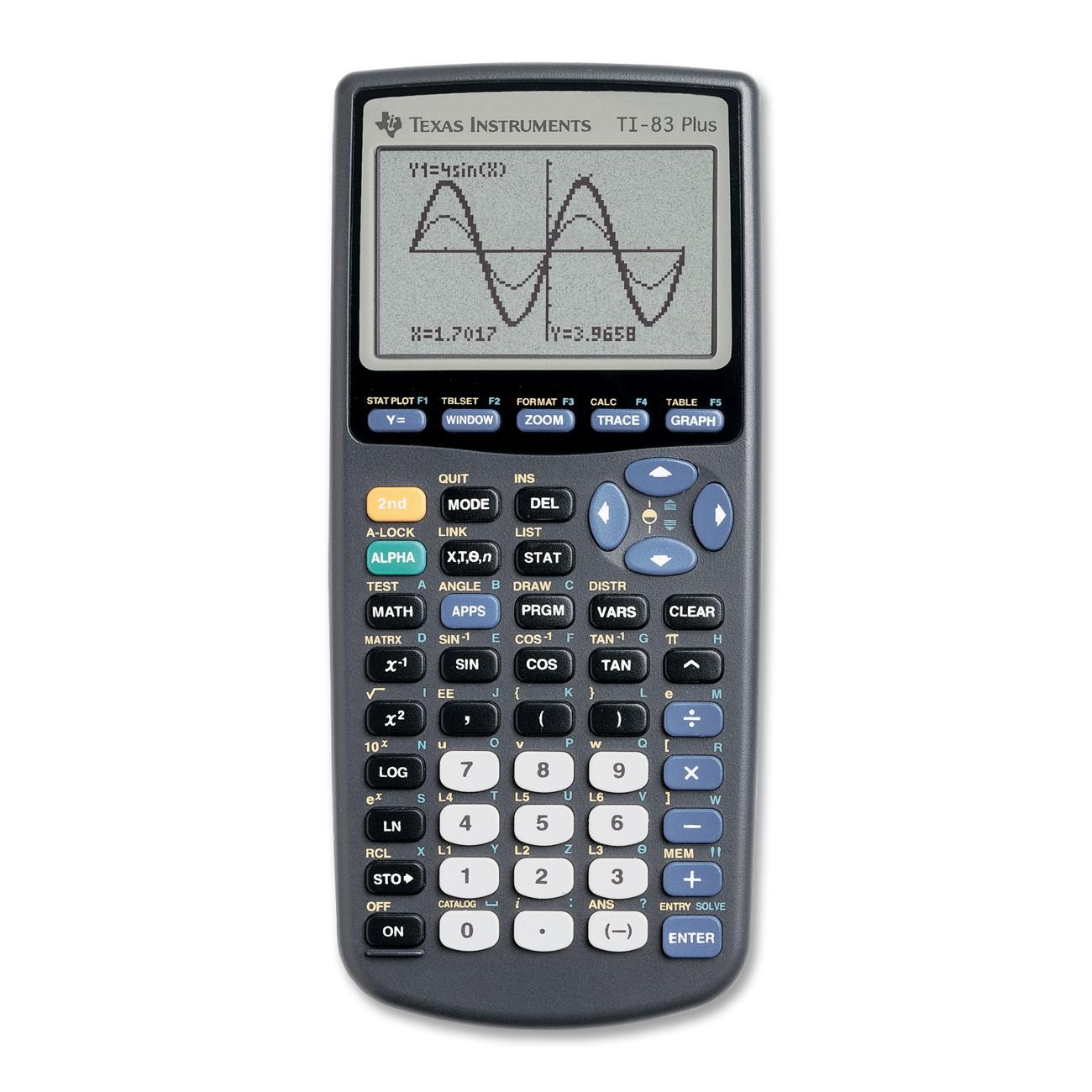
In conclusion, the TI-83 Plus calculator stands as a testament to the power of technology in enhancing our understanding of mathematics. Its versatility and ease of use make it an invaluable tool for students, professionals, and anyone seeking to expand their mathematical horizons.
Embrace the TI-83 Plus and unlock a world of mathematical possibilities.